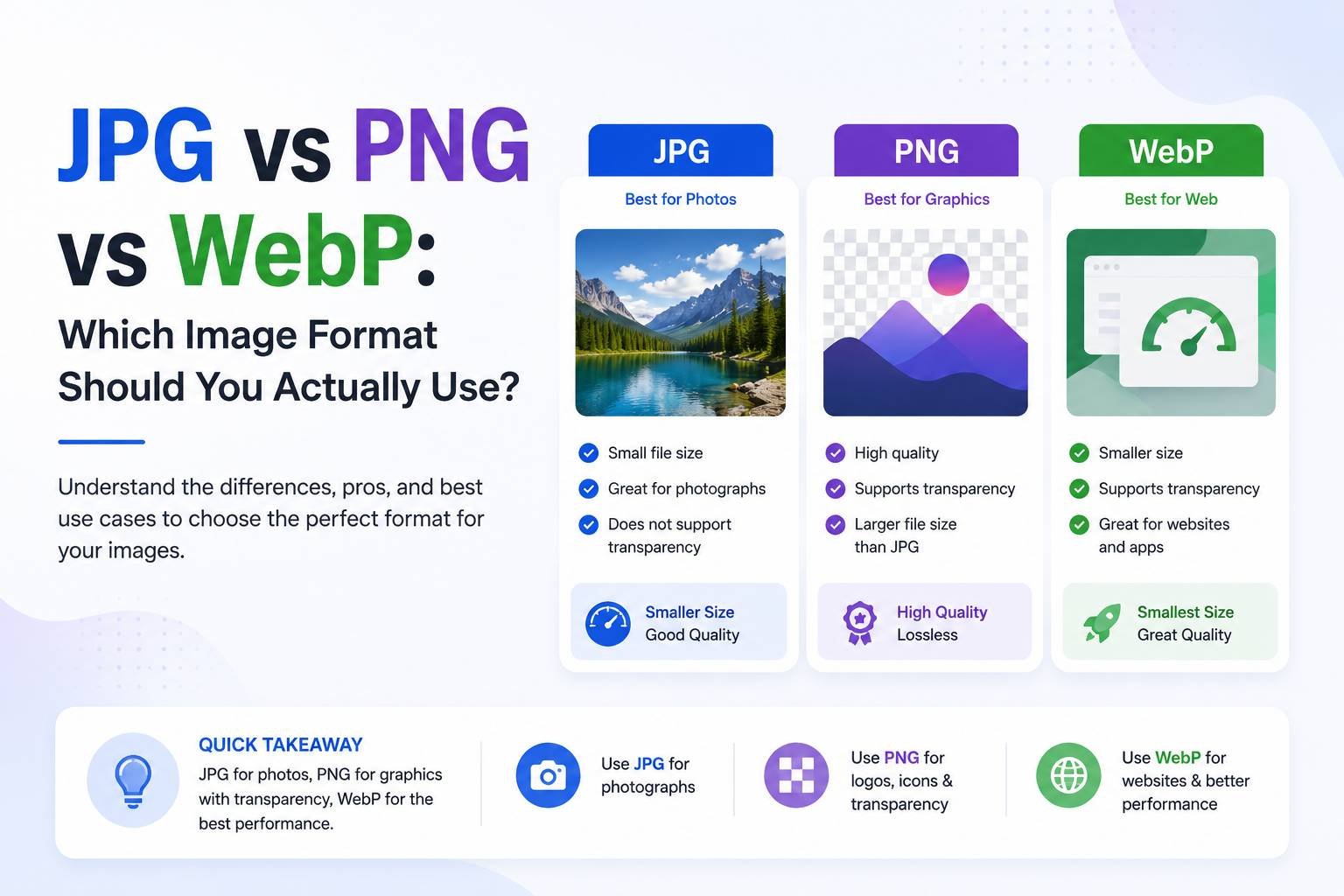
JPG vs PNG vs WebP: Which Image Format Should You Actually Use?
Choosing the wrong image format is one of the most common — and easiest to fix — mistakes people make on websites, in documents, and on social media. Using PNG where JPG would work fine can slow a website down significantly. Using JPG for a logo that needs a transparent background will leave you with an ugly white box. Understanding the real differences between these formats takes the guesswork out of it.
The Short Version
- JPG: Best for photographs and complex images with lots of colors. Smaller file size, no transparency.
- PNG: Best for logos, graphics, screenshots, and anything needing a transparent background. Larger file size, perfect sharp edges.
- WebP: A newer format that compresses like JPG but often supports transparency like PNG — the best of both in most cases, though not universally supported by older software.
JPG: The Everyday Photo Format
JPG (or JPEG) uses lossy compression, meaning it discards some image data to shrink file size. For photographs — sunsets, portraits, product photos — this data loss is nearly invisible to the human eye, but the file size savings are substantial, often 5-10x smaller than an equivalent PNG.
Use JPG when:
- You’re uploading photographs (people, nature, products)
- Transparency isn’t needed
- File size matters more than pixel-perfect sharpness (e.g., blog post images, email attachments)
Avoid JPG when:
- The image has sharp text or fine lines (JPG compression can blur these)
- You need a transparent background
PNG: The Format for Precision
PNG uses lossless compression, meaning no image data is discarded. This makes it ideal for anything where sharp, exact detail matters — logos, icons, screenshots, and graphics with text. PNG also supports transparency, which is essential for logos that need to sit on top of different colored backgrounds.
Use PNG when:
- You need a transparent background (logos, icons, stickers)
- The image contains text, sharp lines, or flat colors (screenshots, diagrams, infographics)
- Quality matters more than file size
Avoid PNG when:
- You’re uploading a photograph — the file size will be unnecessarily large with no visible quality benefit over JPG
WebP: The Modern Middle Ground
Developed by Google, WebP was designed specifically to solve the tradeoff between JPG and PNG. It can achieve JPG-like compression while still supporting transparency like PNG, generally producing files 25-35% smaller than a comparable JPG or PNG at the same visual quality.
Use WebP when:
- You’re optimizing a website for speed (most modern browsers support it)
- You want transparency without the large file size of PNG
- You’re serving images at scale and every KB of load time matters
Avoid WebP when:
- You’re sending a file to someone using very old software that may not open it
- A platform explicitly requires JPG or PNG format only
Real-World Format Decisions
- Website blog header image → JPG or WebP (photograph-heavy content, size matters for load speed)
- Company logo for a website → PNG or WebP (needs transparency)
- Screenshot for a tutorial → PNG (sharp text and UI elements need to stay crisp)
- Product photo for an online store → JPG (photographic detail, smaller file size for faster page loads)
- Icon set for an app → PNG or WebP (transparency required, small dimensions anyway)
How to Convert Between Formats
If you already have images in the wrong format, converting is straightforward with a free online converter:
- Upload your PNG, JPG, or WebP file
- Choose your target format
- Adjust quality/compression if the tool allows it
- Download the converted file
For batch conversions — say, converting an entire folder of PNG screenshots to WebP for a website — look for a tool that supports multiple file uploads at once rather than converting one at a time.
Why This Matters for Website Speed
Google and other search engines factor page load speed into search rankings. A page loaded with unnecessarily large PNG images where JPG or WebP would work just as well can measurably slow down load times, which affects both user experience and SEO performance. Auditing your website’s images and converting oversized PNGs to more efficient formats is one of the simplest technical SEO wins available.
Final Thoughts
There’s no single “best” image format — the right choice depends entirely on what you’re using the image for. Photographs belong in JPG or WebP. Logos, icons, and screenshots belong in PNG or WebP. When in doubt, WebP is usually the safest modern default, combining small file size with transparency support. Knowing this distinction — and converting your existing images accordingly — is a small change that can noticeably improve both website performance and the visual quality of your content.