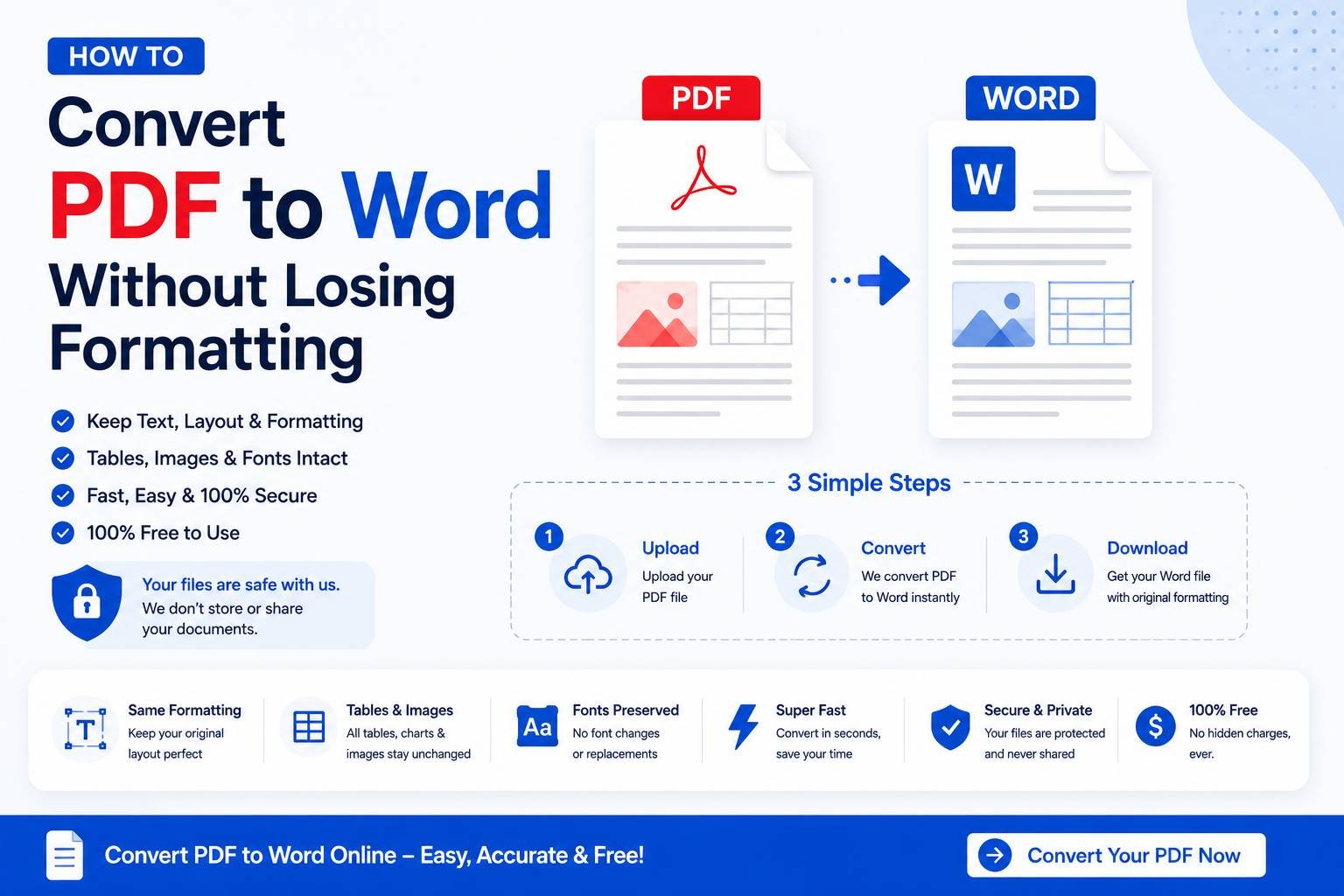
How to Convert PDF to Word Without Losing Formatting
Converting a PDF back into an editable Word document sounds simple, but anyone who has tried it knows the results can be messy — misplaced text boxes, broken tables, missing images, or fonts that don’t match the original. This happens because PDFs are designed to preserve exact visual layout, not to be easily editable, which makes the conversion process more complex than it looks. Here’s how to get a clean result.
Why PDF to Word Conversion Is Trickier Than It Seems
A PDF stores content as a fixed visual layout — think of it like a printed page frozen in digital form. A Word document, on the other hand, stores content as editable, flowing elements (paragraphs, tables, styles) that can reflow based on formatting changes. Converting from a fixed layout to a flexible one requires the tool to “reconstruct” the original structure — recognizing what was a paragraph, what was a table, and what was just an image — which is inherently more error-prone than the reverse process.
What Converts Well vs. What Doesn’t
Converts reliably:
- Plain text documents with simple paragraph structure
- Basic tables with clear borders
- Standard fonts that are widely available
Often causes problems:
- Complex multi-column layouts (newsletters, brochures)
- Scanned PDFs (image-based, not text-based) — these need OCR, not just conversion
- Documents with unusual or embedded custom fonts
- Heavy use of text boxes, layered graphics, or watermarks
Step-by-Step: Converting a Text-Based PDF to Word
- Upload your PDF to a PDF-to-Word converter
- Wait for the tool to process and reconstruct the layout
- Download the resulting .docx file
- Open it in Word (or Google Docs) and review the formatting
- Fix any minor spacing, font, or table issues manually
For simple documents, this process usually requires little to no manual cleanup. For complex layouts, expect to spend a few minutes adjusting spacing or realigning elements.
Converting Scanned PDFs: Why You Need OCR First
If your PDF is a scanned document — meaning it’s essentially a photograph of a page rather than actual selectable text — a standard converter won’t be able to extract editable text at all, since there’s no text data to convert, only pixels. This is where OCR (Optical Character Recognition) comes in: OCR analyzes the image, recognizes the shapes of letters and words, and converts them into actual editable text before the Word conversion happens.
Signs your PDF needs OCR first:
- You can’t select or highlight text when you open the PDF
- The document was created by scanning a physical page
- Searching for a word within the PDF returns no results
Most modern PDF-to-Word tools include OCR automatically, but it’s worth confirming, since running conversion without OCR on a scanned document will produce an empty or garbled Word file.
Tips for Cleaner Conversion Results
- Start with the highest quality PDF available — a low-resolution scan will produce more OCR errors than a clear one
- Avoid converting password-protected PDFs directly — remove the password first if you have legitimate access, since encrypted files often fail to convert properly
- Check tables carefully after conversion — tables are one of the most common elements to shift, merge, or split incorrectly during conversion
- Review fonts — if the original PDF used a custom or unusual font, the converted Word document may substitute a similar but not identical font, which can shift line spacing slightly
When to Convert vs. When to Just Copy-Paste
For very short documents (a page or two of plain text), sometimes the fastest approach is simply opening the PDF, selecting the text manually, and pasting it into a blank Word document — this avoids any layout reconstruction issues entirely, though you’ll need to rebuild formatting like headings or bullet points yourself. For longer documents or anything with tables and images, a proper PDF-to-Word converter saves significantly more time than manual recreation.
Final Thoughts
PDF-to-Word conversion works best on simple, text-based documents and gets progressively less reliable as layouts get more complex or when scanned images are involved. Using a converter with built-in OCR handles the vast majority of everyday cases — contracts, reports, forms — cleanly, but it’s always worth reviewing tables, fonts, and spacing after conversion rather than assuming a perfect one-to-one match with the original.