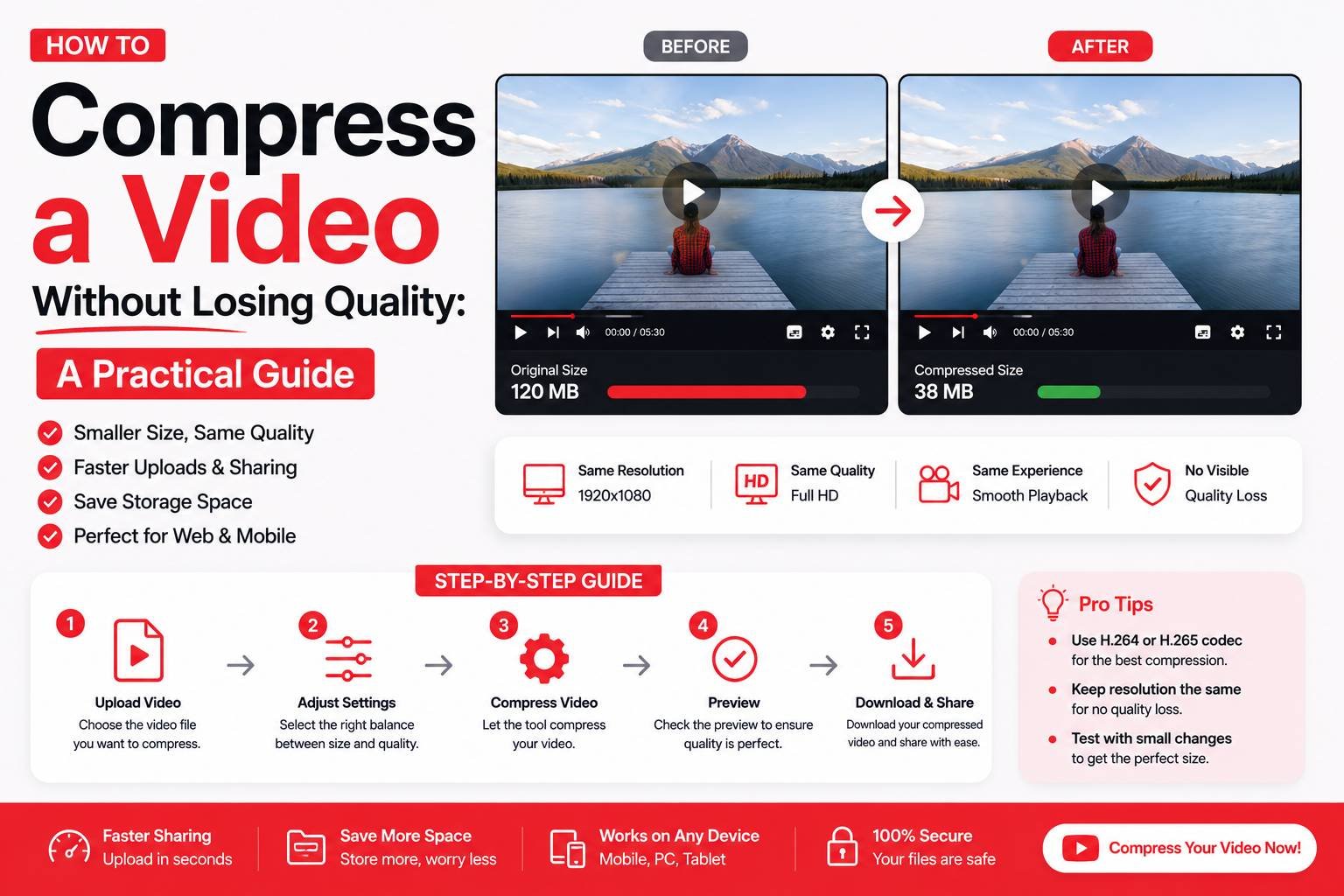
How to Compress a Video Without Losing Quality: A Practical Guide
A three-minute phone video can easily be 200-500MB, which makes it impossible to email, slow to upload, and often too big for messaging apps that compress (and degrade) it automatically anyway. Video compression solves this, but it’s easy to overdo it and end up with a blurry, pixelated result. Here’s how compression actually works and how to shrink a video without wrecking it.
Why Video Files Are So Much Larger Than Photos
Video is essentially a rapid sequence of individual images (frames) played back with audio, typically 24-60 frames per second. A single one-minute video at high resolution can contain thousands of individual frames’ worth of data, plus audio — which is why even short clips end up far larger than any single photo.
How Video Compression Actually Works
Video compression reduces file size through a few key techniques:
- Reducing bitrate — bitrate is how much data is used per second of video; lowering it reduces file size but can introduce visible artifacts if pushed too far
- Lowering resolution — scaling down from 4K or 1080p to 720p significantly reduces file size, especially useful if the video will only ever be viewed on a phone screen anyway
- Adjusting frame rate — reducing from 60fps to 30fps (where the extra smoothness isn’t needed) cuts the amount of data significantly
- Efficient codecs — modern codecs like H.264 or H.265 compress video far more efficiently than older formats, achieving similar quality at a fraction of the file size
Step-by-Step: Compressing a Video Online
- Upload your video file to a compression tool
- Choose a target — either a compression level (low/medium/high) or a specific target file size if the tool supports it
- Optionally adjust resolution if you don’t need the original quality (e.g., compressing a 4K video down to 1080p)
- Process and download the compressed file
Choosing the Right Compression Level for Your Purpose
- Sharing on social media: Medium compression, since most platforms recompress uploads anyway, so preserving maximum quality before upload matters less
- Emailing or messaging: Higher compression, since most email/messaging attachment limits are strict (often 25MB or less)
- Archiving for personal storage: Lower compression, prioritizing quality since file size matters less when you control the storage
- Uploading to a portal with strict limits: Compress specifically to meet the stated limit, checking the result rather than guessing
Resolution vs. Bitrate: Which Matters More?
If a video will only be watched on a phone or in a small video player embedded on a website, dropping resolution from 1080p to 720p often produces a much bigger file size reduction with minimal visible quality loss than adjusting bitrate alone — since most viewers won’t notice the resolution drop at smaller screen sizes anyway. For videos that might be viewed on a larger screen or projected, keeping resolution higher and reducing bitrate moderately instead preserves visual clarity better.
Common Video Compression Mistakes
- Compressing an already-compressed file repeatedly — each round of lossy compression degrades quality further, so always compress from the original source file, not a previously compressed copy
- Over-compressing to hit an arbitrary size — pushing compression too aggressively introduces visible blocky artifacts, especially in scenes with a lot of movement or fine detail
- Ignoring audio quality — some compression tools reduce video and audio quality proportionally; if audio clarity matters (interviews, tutorials), check whether the tool lets you adjust audio bitrate separately
When You Actually Need the Original Quality
Not every situation calls for compression. If you’re submitting a video for professional editing, archiving important footage, or need to zoom in on fine detail later, keep the original uncompressed file as your master copy and only create a compressed version for the specific purpose that requires it (sharing, uploading, emailing).
Final Thoughts
Video compression is a balancing act between file size and visible quality, and the right settings depend entirely on where the video is headed — a quick social share tolerates much more compression than something meant for archiving or professional use. Using a free online compressor with resolution and bitrate control lets you tailor the output to the specific situation rather than applying a one-size-fits-all setting that either wastes file size or sacrifices more quality than necessary.