How to Add or Remove a Watermark From a PDF
Watermarks serve a real purpose — protecting draft documents from being passed off as final versions, marking confidential material, or branding a document before it’s widely shared. But they also cause plenty of headaches: a watermark added by mistake, one that’s too dark and obscures the text, or a legitimate need to remove an outdated watermark from your own document. Here’s how to handle both directions.
Why Add a Watermark in the First Place
- Marking drafts — a “DRAFT” watermark prevents an unfinished document from being mistaken for the final version if it’s shared early for feedback
- Confidentiality labeling — stamping “CONFIDENTIAL” or “INTERNAL USE ONLY” across sensitive documents before distribution
- Branding — adding a company logo or name across pages of a report or proposal shared with external parties
- Copyright protection — watermarking sample pages of a document (like a preview chapter of an ebook) to discourage unauthorized redistribution
How to Add a Watermark to a PDF
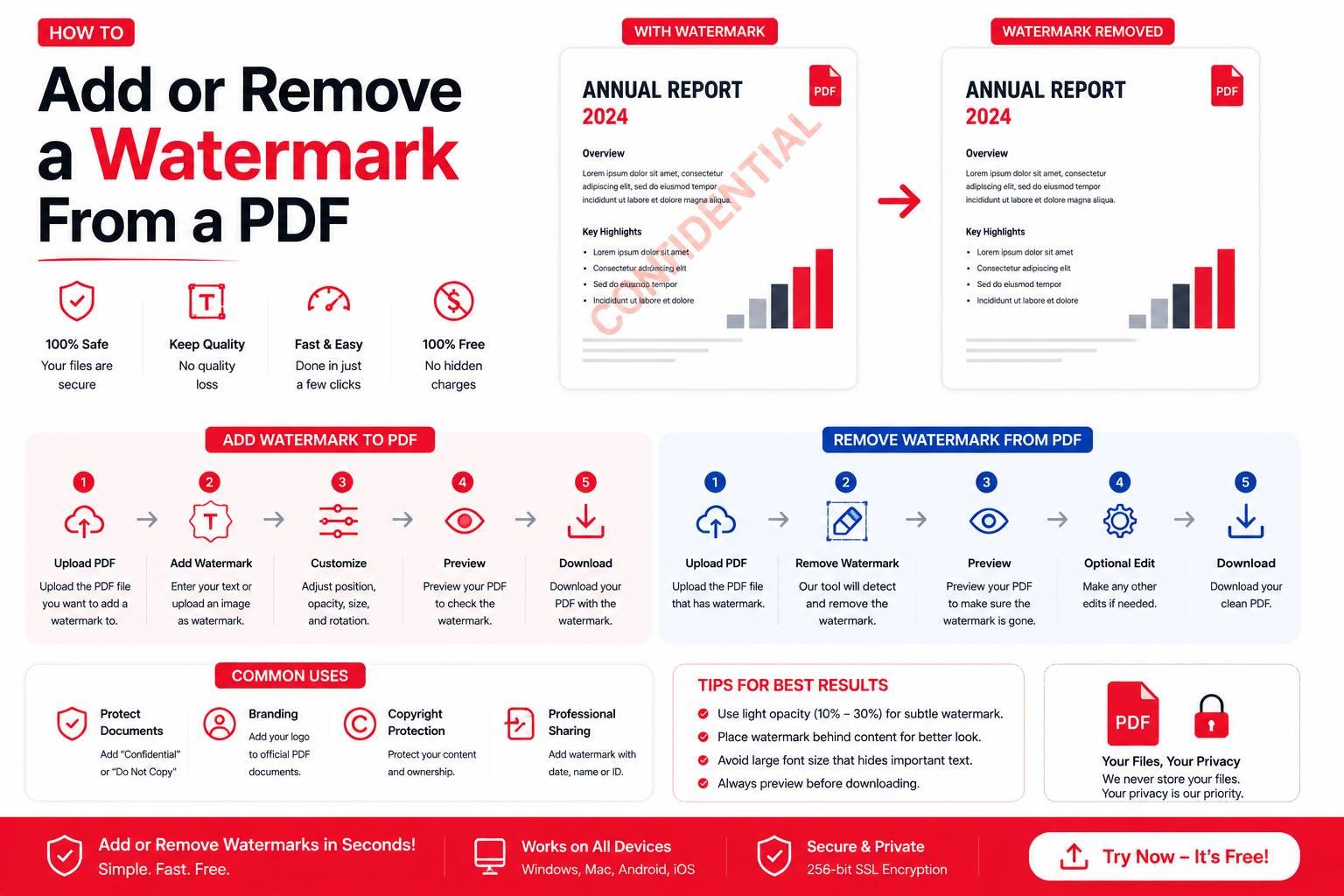
- Upload your PDF to a watermarking tool
- Choose between a text watermark (e.g., “CONFIDENTIAL”) or an image watermark (e.g., a logo)
- Set the position — centered diagonally across the page is most common for text watermarks, while a logo often works better in a corner
- Adjust the opacity — a lighter, more transparent watermark keeps the underlying text readable while still being visible
- Apply to all pages or a selected range, then download
Getting Watermark Opacity Right
The most common mistake with watermarking is making it too dark, which makes the underlying document harder to read. A good starting point is 15-25% opacity — visible enough to serve its purpose, faint enough not to interfere with reading the actual content. For confidentiality or draft markings meant to be clearly noticeable, slightly higher opacity (around 30%) is reasonable, but going much beyond that starts to genuinely hurt readability.
Removing a Watermark From a PDF You Own
There are legitimate reasons to remove a watermark: an outdated “DRAFT” stamp left on a now-finalized document, a watermark applied by mistake, or your own document that was watermarked for an earlier internal review and now needs to go out clean. Watermark removal tools typically work by detecting the semi-transparent overlay pattern across pages and removing it while leaving the original document content intact.
Important distinction: removing a watermark from a document you created or have legitimate rights to is fine. Removing a watermark from a document you don’t own the rights to (like a purchased ebook or licensed material) in order to redistribute it is a copyright issue, not a formatting one — the tool doesn’t change the legal ownership of the content underneath.
Step-by-Step: Removing a Watermark
- Upload the watermarked PDF to a watermark removal tool
- The tool scans for repeated semi-transparent patterns typical of watermarks
- Preview the result to confirm the watermark is fully removed without damaging the underlying text
- Download the cleaned document
Results are generally excellent for standard text watermarks applied by common PDF tools. Watermarks that are deeply embedded into a scanned image (rather than overlaid as a separate layer) are harder to remove cleanly, since removing them means editing the image itself rather than deleting an overlay.
When Watermark Removal Doesn’t Work Perfectly
If a watermark was flattened into the document — meaning it was merged permanently into the page content rather than kept as a separate removable layer — no tool can perfectly separate it back out without some quality loss, since technically the watermark and the original content have become the same image data. In these cases, the best option is usually requesting a clean, non-watermarked version directly from whoever created the original document.
Final Thoughts
Adding a watermark is straightforward and useful for protecting drafts, marking confidentiality, or branding shared documents — just keep the opacity moderate so it doesn’t interfere with readability. Removing one is equally simple when you have legitimate rights to the document and the watermark was applied as a standard overlay. Either way, a free online PDF tool handles both tasks in seconds without needing design software.