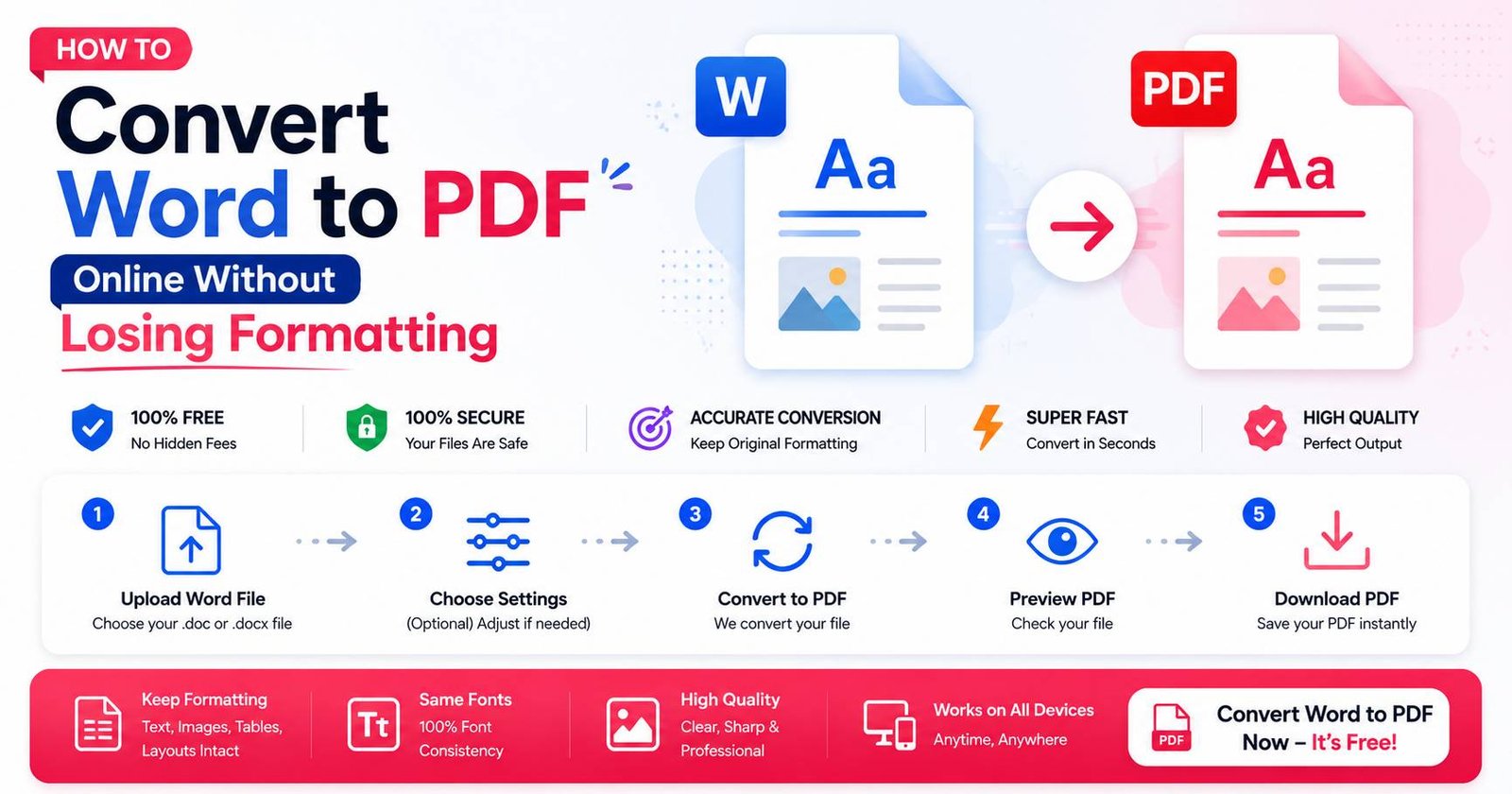
How to Convert Word to PDF Online Without Losing Formatting
Sending a Word document instead of a PDF can quietly cause problems you don’t notice until it’s too late — fonts substituted on the recipient’s computer, spacing shifting, or images moving out of place. Converting to PDF locks the layout exactly as you designed it, which is why almost every formal submission (resumes, contracts, reports) asks for PDF specifically. Here’s how to convert cleanly every time.
Why PDF Is the Safer Format to Share
A Word document’s appearance depends on the software and fonts installed on whoever opens it. If you used a font the recipient doesn’t have, Word silently substitutes a different one — which can shift line breaks, page counts, and spacing in ways you won’t see on your own computer. A PDF, by contrast, embeds the exact appearance permanently, so it looks identical on every device, regardless of what software or fonts the recipient has installed.
Step-by-Step: Converting Word to PDF Online
- Upload your .docx or .doc file to a Word-to-PDF converter
- Wait a few seconds while the tool processes the document
- Preview the result if the tool allows it, checking that formatting matches the original
- Download the finished PDF
For most standard documents — resumes, letters, reports — this process is close to instant and requires no cleanup afterward.
Converting Directly From Microsoft Word (No Online Tool Needed)
If you already have Word installed, you don’t need an online converter at all:
- Open your document in Word
- Go to File → Save As (or Export)
- Choose PDF as the file type
- Save
This built-in method preserves formatting reliably since it’s using the same software that created the document. Online converters are most useful when you don’t have Word installed, or you’re working from a phone or a shared/public computer.
What Can Go Wrong During Conversion
- Custom or unusual fonts not rendering correctly — if a converter doesn’t have access to the exact font you used, it may substitute a similar one, subtly shifting spacing
- Tables shifting slightly — complex tables with merged cells occasionally show minor alignment differences after conversion
- Embedded objects (charts, linked spreadsheets) — objects linked from Excel sometimes convert as static images rather than remaining interactive, which is expected behavior for PDF but worth knowing in advance
- Headers/footers duplicating oddly — rare, but worth a quick check on multi-section documents with different header/footer settings per section
Batch Converting Multiple Word Files
If you need to convert several documents at once — for example, converting a folder of reports before archiving them — look for a converter that supports multiple file uploads in a single batch rather than converting one at a time, which saves significant time for bulk conversions.
Checking Your PDF Before Sending
Before submitting or sending an important PDF, a quick review avoids surprises:
- Open the finished PDF and scroll through every page, checking that fonts, spacing, and images all appear as expected
- Confirm the page count matches what you expect (a formatting shift can occasionally push content onto an extra page)
- Check that any hyperlinks in the original Word document still work in the PDF, if that matters for your use case
When to Keep the Word Version Too
Even after converting to PDF for sharing, keep the original .docx file for yourself — PDFs aren’t meant to be easily edited, so if you need to make future changes, you’ll want the editable Word source file on hand rather than trying to edit the PDF directly.
Final Thoughts
Converting Word to PDF is a quick, one-click process that protects your document’s exact formatting regardless of what device or software the recipient uses to open it. Whether you use Word’s built-in export feature or a free online converter, the result is the same reliable outcome — just remember to keep your original editable file for any future updates.