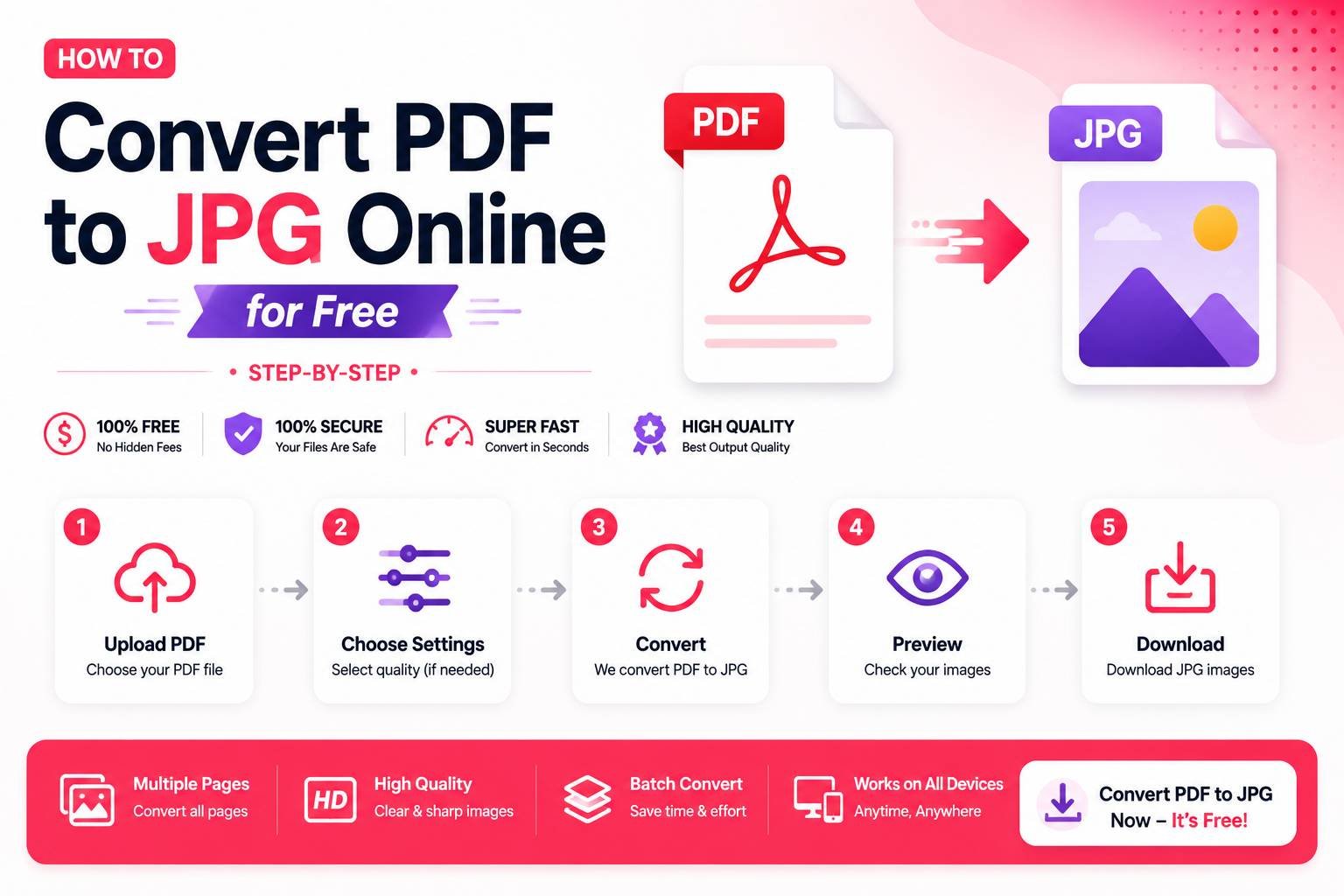
How to Convert PDF to JPG Online for Free (Step-by-Step)
Sometimes you don’t need a full PDF — you just need one page, or all the pages, as individual images. Maybe you’re pulling a diagram out of a report to paste into a presentation, or you need to post a document page to social media where PDFs aren’t supported. Converting a PDF to JPG solves this, and it’s a quick, free process once you know what to expect.
Why Convert a PDF to JPG in the First Place
- Social media and messaging apps often don’t preview PDFs directly, but images display instantly
- Presentation software sometimes handles inserting an image more smoothly than embedding a PDF page
- Extracting a single diagram, chart, or photo from a longer document without needing the whole file
- Websites and blogs that need a visual preview image rather than a downloadable document
Step-by-Step: Converting PDF to JPG
- Upload your PDF to a PDF-to-JPG converter
- Choose whether to convert all pages or a specific page range
- Select image quality/resolution if the tool offers options
- Convert and download — multi-page PDFs typically download as a ZIP file containing one JPG per page
Choosing the Right Quality Setting
Most converters let you choose an output quality level, which affects both image sharpness and file size:
- High quality: Best for extracting diagrams, charts, or text-heavy pages where clarity matters, such as pulling a table out of a report
- Medium quality: Good general-purpose setting for most casual uses, like sharing a page on social media
- Low quality: Only worth using if file size is the absolute priority and the image will be viewed very small (e.g., a tiny thumbnail preview)
For pages containing text, err toward higher quality settings — text can become blurry or hard to read at lower quality levels, especially at smaller font sizes.
Converting Multiple Pages at Once
If your PDF has many pages and you need all of them as separate images (for example, turning a scanned multi-page contract into individual image files), look for a tool that supports batch conversion rather than converting page by page. A good batch converter will:
- Process all pages in a single upload
- Package the results into a downloadable ZIP file
- Preserve the original page order in the file naming (page-1.jpg, page-2.jpg, etc.)
JPG vs PNG Output: Which Should You Choose?
Most PDF-to-image converters default to JPG, which works well for the vast majority of use cases. However, if the PDF page contains a diagram or graphic with sharp lines and flat colors (rather than photographic content), converting to PNG instead can preserve more detail without JPG’s slight compression artifacts — worth choosing PNG specifically when a page contains charts, line art, or screenshots rather than continuous-tone images.
Common Issues and How to Fix Them
- Text looks slightly blurry after conversion: Increase the output quality/resolution setting and reconvert
- Colors look slightly different from the original PDF: This can happen due to color profile differences between PDF and JPG; if color accuracy matters (like for a design proof), check whether the tool offers a color profile option
- Large multi-page PDF produces a huge ZIP file: Consider converting only the specific pages you actually need rather than the entire document
Final Thoughts
Converting a PDF to JPG is one of the simplest document conversions there is, but choosing the right quality setting and understanding when PNG might serve you better makes a real difference in the final result. For quick sharing or extracting a single page, the default settings on most free tools work fine — for anything requiring sharp text or precise color, bumping up the quality setting before converting is worth the extra few seconds.