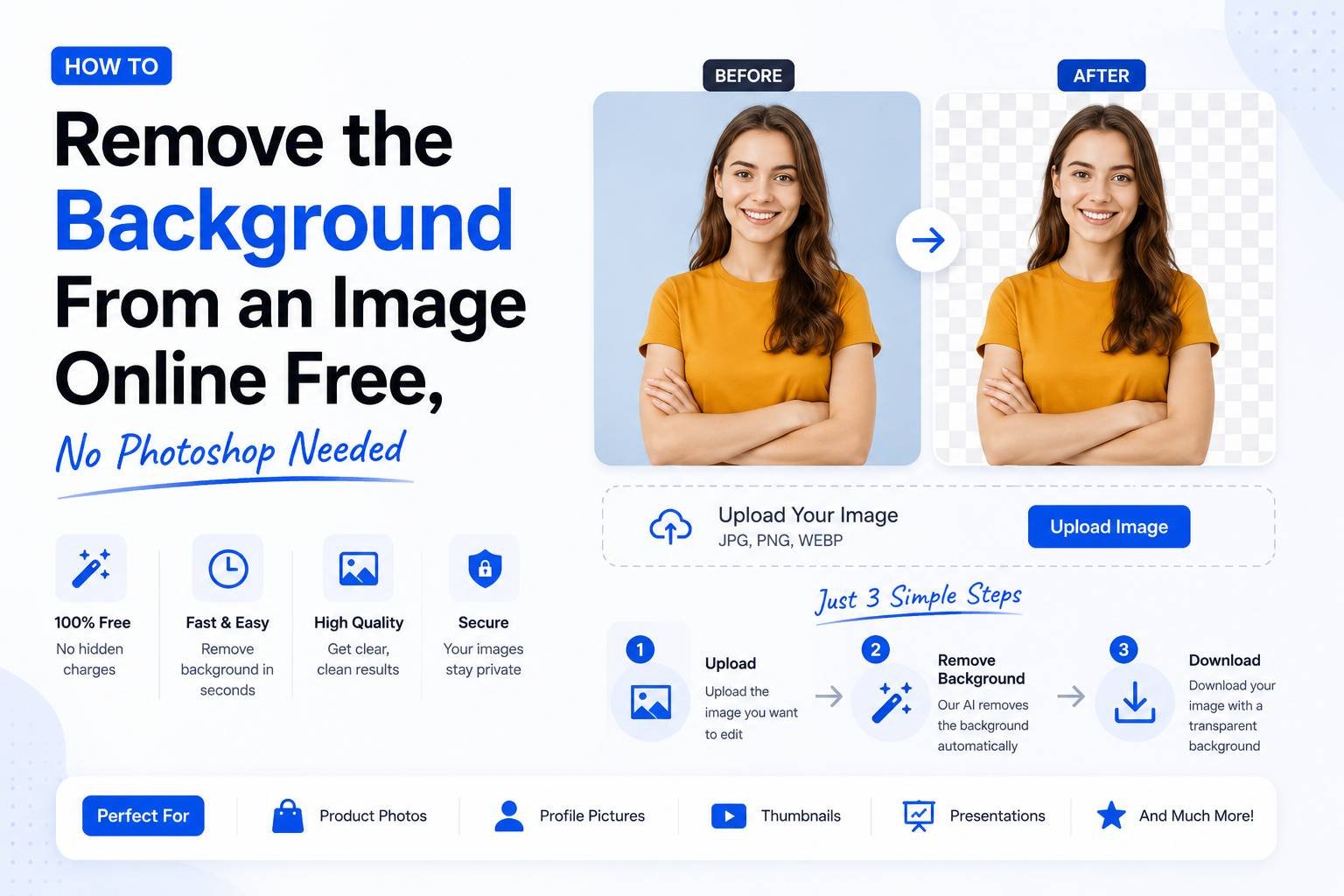
How to Remove the Background From an Image Online (Free, No Photoshop Needed)
Removing a background used to require Photoshop skills — carefully tracing around a subject with the pen tool, feathering edges, and hoping the hair or fur didn’t look choppy. Today, free AI-powered background removers do this automatically in a few seconds, detecting the subject and cutting it out cleanly without any manual selection. Here’s how it works and how to get the cleanest possible result.
Why People Need Background Removal
Background removal comes up far more often than people expect:
- E-commerce product photos — placing products on a clean white background for a store listing
- Passport and ID photos — replacing an uneven wall with a compliant plain background
- Profile pictures and logos — isolating a subject to place on a different colored background
- Presentations and designs — layering a cutout photo onto a slide or graphic without a distracting background
How Automatic Background Removal Works
Modern background removers use AI models trained to detect the edges of a subject — a person, product, or object — and separate it from everything behind it. Unlike older tools that relied on solid-color backgrounds (like a green screen), today’s tools can handle busy, uneven, or complex backgrounds because the AI recognizes the subject itself rather than just detecting color contrast.
The process happens in three steps:
- The tool analyzes the image and identifies the main subject
- It creates a precise outline (called a mask) around that subject
- Everything outside the mask is made transparent, or replaced with a new background color/image
Step-by-Step: Removing a Background Online
- Upload your photo to a background remover tool
- Wait a few seconds while the AI processes the image
- Review the result — most tools show a preview with the background removed
- Fine-tune the edges if the tool offers a manual brush/eraser option (useful around hair or fine details)
- Choose to export with a transparent background (PNG) or replace it with a solid color/new image
Getting the Cleanest Results
A few things make a big difference in how clean the final cutout looks:
- Good contrast between subject and background in the original photo helps the AI detect edges more accurately
- Sharp focus on the subject — a blurry or motion-blurred edge is harder for any tool (AI or manual) to cut out cleanly
- Avoid busy backgrounds with similar colors to the subject (e.g., a person in a brown shirt standing in front of a brown wall) since this reduces contrast the AI relies on
Common Use Cases and the Right Export Settings
- Passport/ID photo: Export with a solid white or light gray background at the exact required pixel dimensions
- Product listing photo: Export with a transparent PNG background so it can be placed on any marketplace template
- Logo cutout: Export as PNG with transparency preserved for use across different colored website sections
- Social media graphic: Replace the background with a new solid color or image that matches your branding
Fixing Common Background Removal Issues
- Fuzzy or incomplete hair edges: Use a manual refinement brush if the tool offers one, zooming in on just the hair area
- Small background remnants left behind: Most tools include an eraser tool to manually clean up leftover pixels the AI missed
- Subject edges look too sharp/cut-out: Some tools offer an edge-feathering option to slightly soften the cutout so it blends more naturally with a new background
When to Use Background Removal vs. Retaking the Photo
If the original photo has poor lighting, extreme shadows, or the subject significantly overlaps with the background in color, even the best AI tool will struggle to produce a clean result. In these cases, it’s often faster to retake the photo against a plainer, better-lit background than to spend time manually correcting a difficult cutout.
Final Thoughts
Background removal, once a skill that required design software and practice, is now a one-click task thanks to free AI-powered tools. Whether you’re preparing a passport photo, cleaning up a product image for an online store, or isolating a subject for a design project, the process takes seconds and produces professional-quality results — as long as you start with a reasonably clear, well-lit source photo.