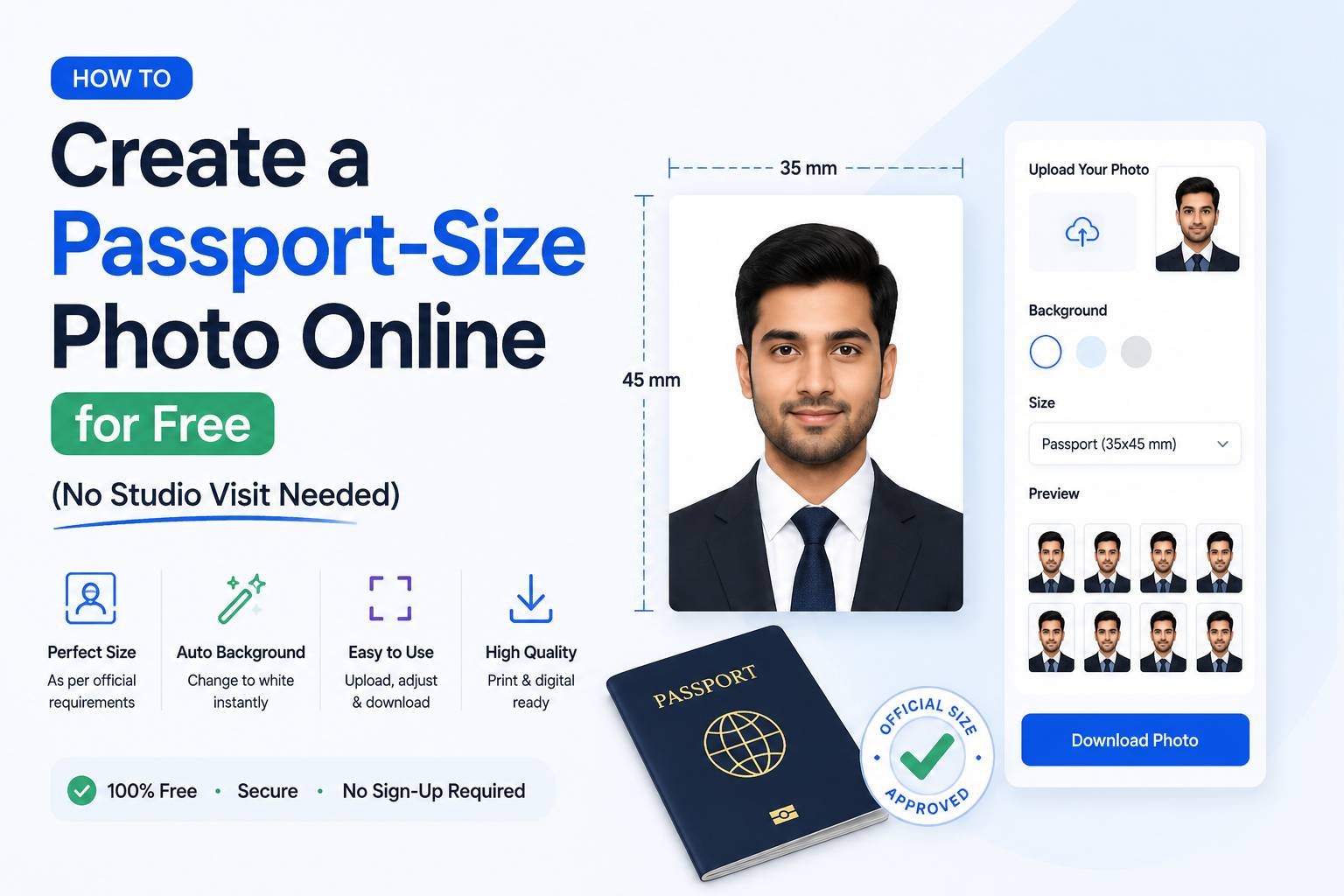
How to Create a Passport-Size Photo Online for Free (No Studio Visit Needed)
Getting a passport-size photo used to mean a trip to a photo studio, waiting for prints, and paying for something you might only need once — for a visa application, job form, exam registration, or ID card. Today, you can create a compliant passport photo from any smartphone photo in a few minutes, entirely online and for free. Here’s exactly how to do it correctly, including the details most people get wrong.
Why Passport Photos Have Such Specific Rules
Passport and visa photos aren’t just about looking presentable — they follow strict technical specifications set by government agencies and international standards (like ICAO guidelines used for passports worldwide). These rules exist so that facial recognition and identity verification systems can process the photo consistently. Common requirements include:
- Exact pixel dimensions (e.g., 2×2 inches or 35x45mm depending on the country)
- Plain white or light-colored background
- Neutral facial expression, eyes open, facing the camera directly
- No shadows on the face or background
- No glasses, hats, or head coverings (except for religious reasons in most countries)
Getting even one of these wrong can lead to application rejection, so it’s worth doing properly the first time.
Step 1: Take the Photo Correctly Before Editing
No tool can fully fix a badly taken source photo, so start with a good base image:
- Stand about 1.5 meters from a plain white or light gray wall
- Use natural daylight or even indoor lighting facing you directly (avoid backlighting, which creates shadows)
- Keep a neutral expression with your mouth closed and eyes open
- Have someone else take the photo, or use a tripod — avoid selfie-angle distortion
Step 2: Remove or Replace the Background
Even a photo taken against a slightly uneven wall can be cleaned up using a background remover tool. Upload your photo, and the tool will automatically detect the subject and replace the background with a solid white (or specified color) backdrop. This step alone fixes the most common reason passport photos get rejected — an inconsistent or non-compliant background.
Step 3: Crop to the Exact Required Dimensions
Different countries and purposes require different exact sizes:
- US passport: 2×2 inches (51x51mm)
- UK passport: 35x45mm
- Schengen visa: 35x45mm
- Indian passport: 2×2 inches, though some forms request 35x45mm
A passport photo tool typically includes country-specific templates so you don’t need to calculate pixel dimensions manually — just select your country or paste the required size, and the tool crops and centers your face automatically according to the standard head-position guidelines.
Step 4: Check Face Positioning
Beyond just cropping to size, most passport photo standards specify where your face should sit within the frame — typically your head height should take up 70-80% of the vertical frame, with your eyes roughly at a specific height from the bottom. Good online tools include an alignment guide overlay so you can adjust your photo until it matches the required positioning before finalizing.
Step 5: Export in the Correct Format and File Size
Once cropped, you’ll usually need to export the photo as a JPG under a specific file size (commonly under 20-50KB for online application portals, though printed photos have no such restriction). If you’re submitting digitally:
- Export as JPG
- Compress to meet the exact KB limit specified by the form
- Double-check the pixel dimensions haven’t changed during compression
Common Mistakes That Get Passport Photos Rejected
- Shadows behind the head from uneven lighting or standing too close to the wall
- Slight smile or tilted head when a completely neutral, straight-on expression is required
- Wrong background color — some countries require pure white, others allow light gray or light blue
- Photo taken too long ago — most passport photos must be recent (within 6 months for many countries)
- Incorrect aspect ratio — cropping to the right dimensions but stretching or squeezing the image in the process
When You Still Might Need a Professional Photo
Free online tools handle background replacement, cropping, and size compliance well, but if your original photo has poor lighting, motion blur, or unusual angles, no editing tool can fully correct these issues. In those cases, retaking the photo — even with just a smartphone against a clean wall — will give better results than trying to fix a fundamentally flawed image.
Final Thoughts
Creating a passport-size photo no longer requires a studio visit or special equipment. With a decent smartphone photo and a free online passport photo tool, you can get a fully compliant photo — correct background, exact dimensions, proper face alignment, and correct file size — in just a few minutes. The key is starting with a well-lit, straight-on photo against a plain background; everything else can be handled by the tool.